
Zapier
Use Zapier zaps to generate videos automatically
You can use Zapier to automate video generation.
Create Sheet
Create a Google Sheet (or clone this) with following columns.
1. Input columns
You will provide values for these columns of the sheet
ready: This column indicates the zapier whther to process the row. Add valueyeswhen the data in the row is ready.template_id: You can get this from template inTemplatestab.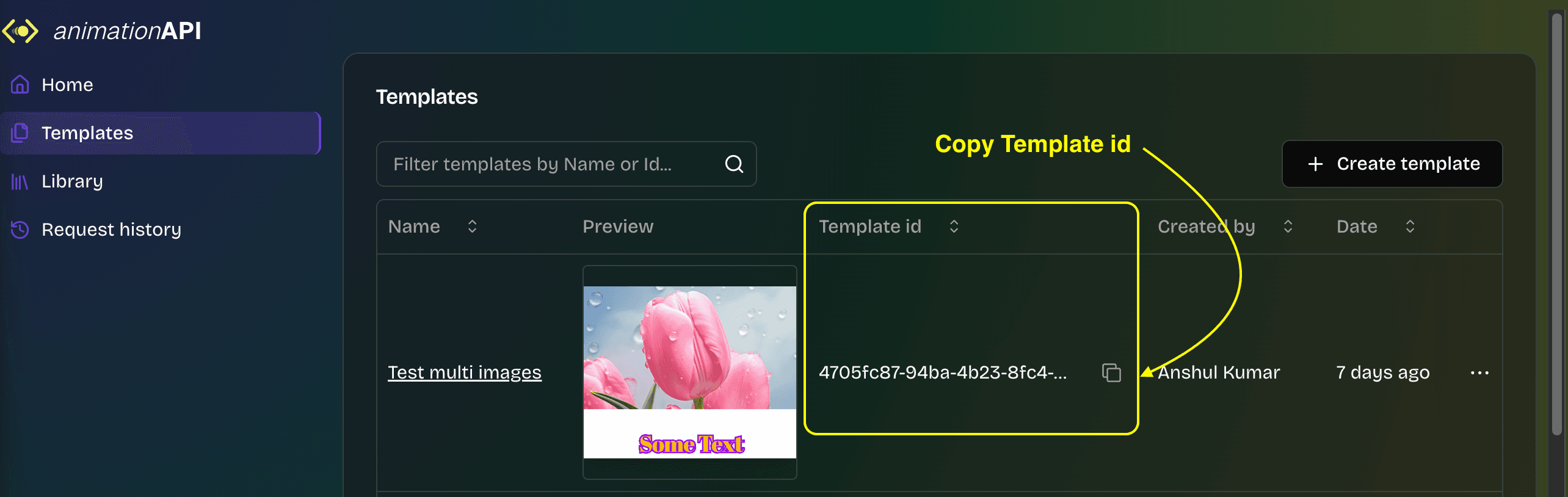
version: The version number of the template to render (defaults to 1)format: The format of the outpur video- mp4
- webm
- gif
fps: The frame rate of the output video (applicable only to mp4 and webm video outputs. gif output will have fixed frame rate = 12)- 24
- 30
pages: There are 2 ways to add data in this column- Copy the value for this column from
Playgroud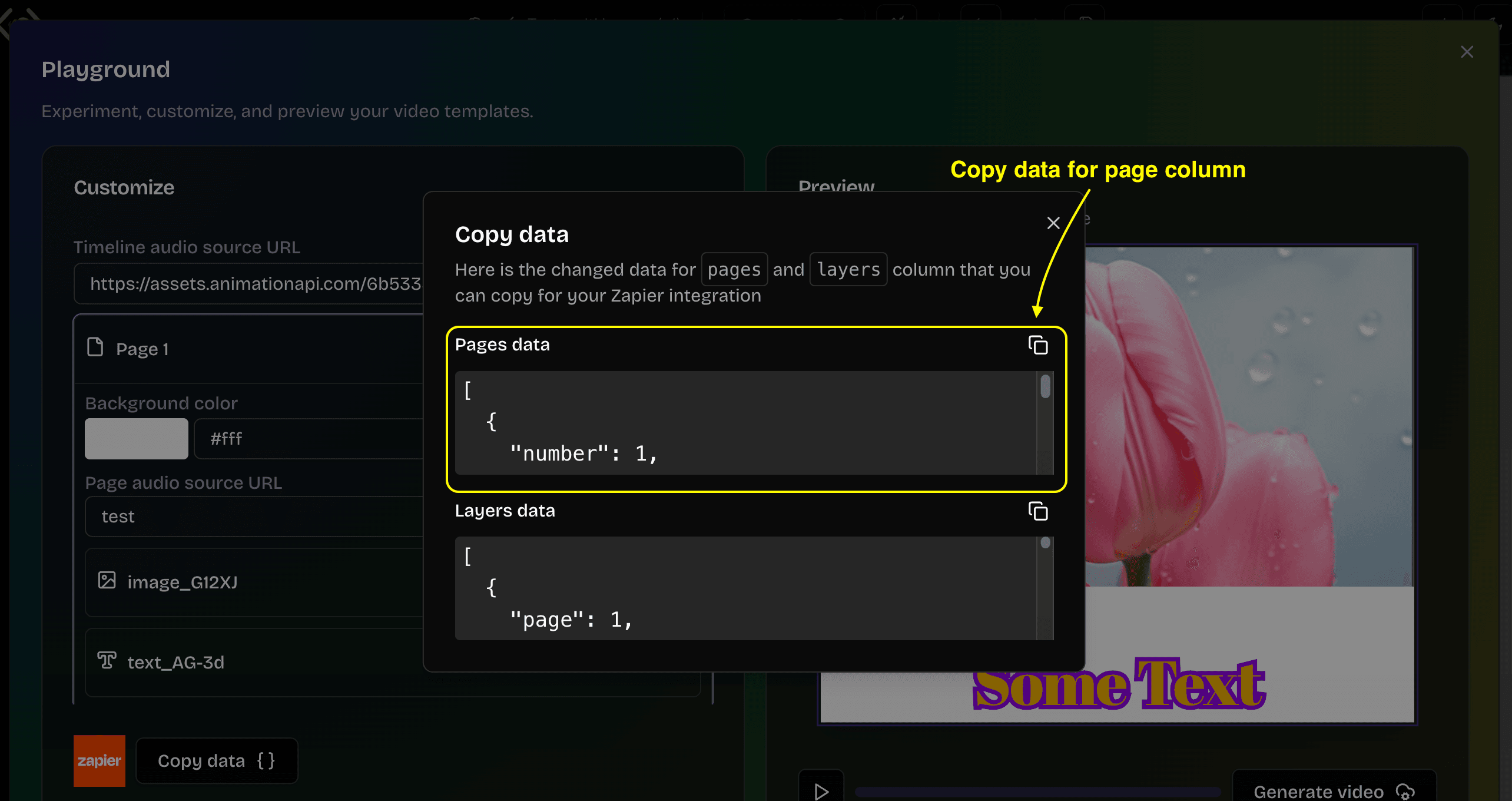
- Add it in following format:
[
    {
        "number": 1, //Required: the page number
        "background_color": "#fff", //Optional: the backgrond color
        "page_audio_url": "https://audio.example.com/test.mp3", //Optional: URL for the page audio
    },
    ...
]
- Copy the value for this column from
layers: There are 2 ways to add data in this column-
Copy the value for this column from
Playgroud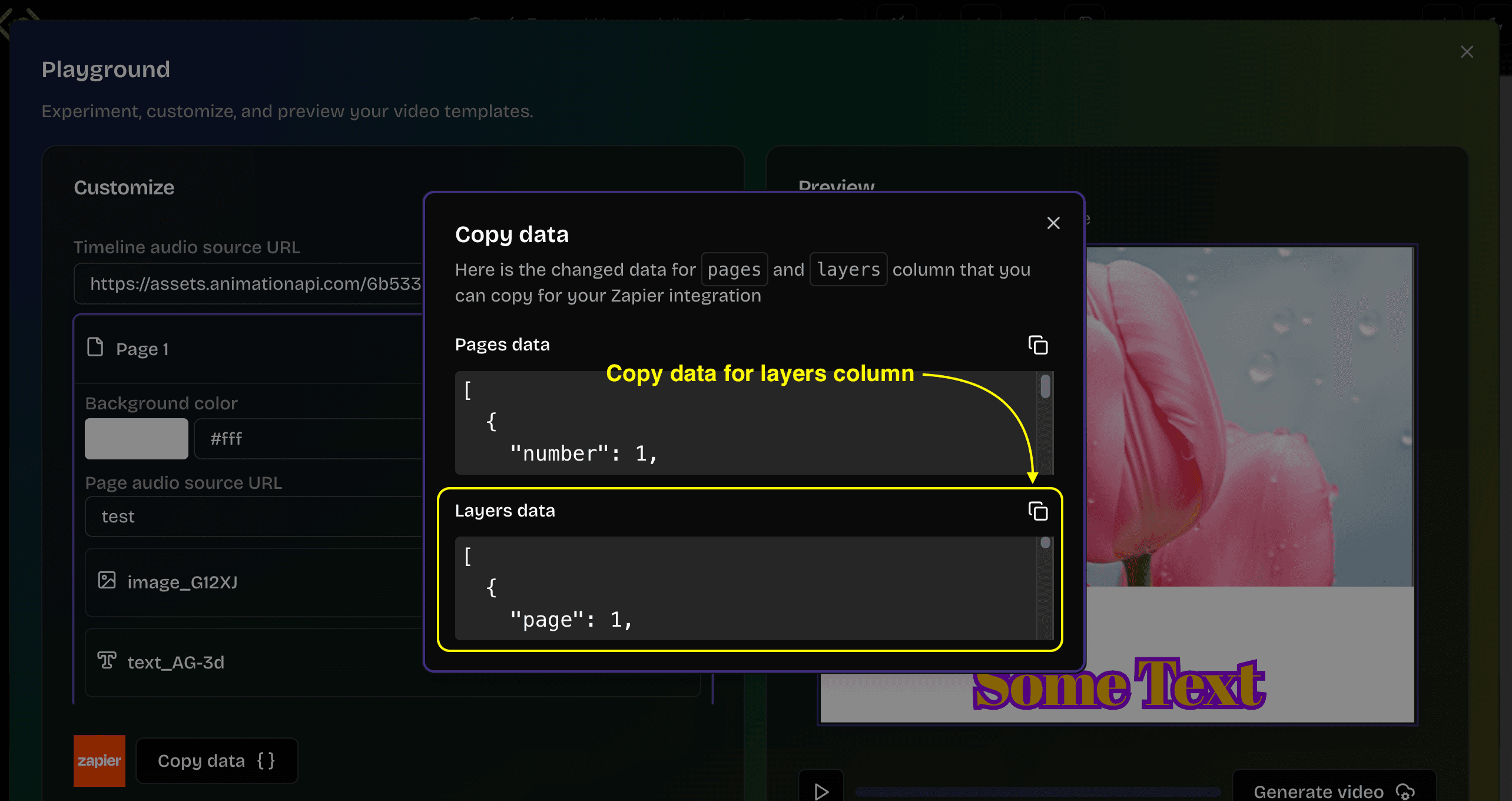
-
Add it in following format:
(each layer has different configurable props)
[
    {
        "page": 1, //Required: The page number the layer is associated to
        "name": "shape_u5hXK", //Required: The unique name of the layer. Obtain this from "Layer manager"
        "fill_color": "#001", //Optional: The fill color prop value
        ...
    },
    ...
]
-
audio_url: The url of the audio file (MP3/WAV) That will be added to the video.
2. Output columns
These columns will be updated by the Zap after the completion of the video generation request.
status: The status of video generation request (FAILED/COMPLETE)id: The unique id of the video generation request.self: The uniqe URL of the video generation request.created_at: The creation date-time stamp.updated_at: The modification dat-time stamp.video_url: The URL of the generated video after successful completion of the video generation request.error: Any error encountered during video gen.
Get access
To get access to the AnimationAPI app on Zapier click this link
Create Zap
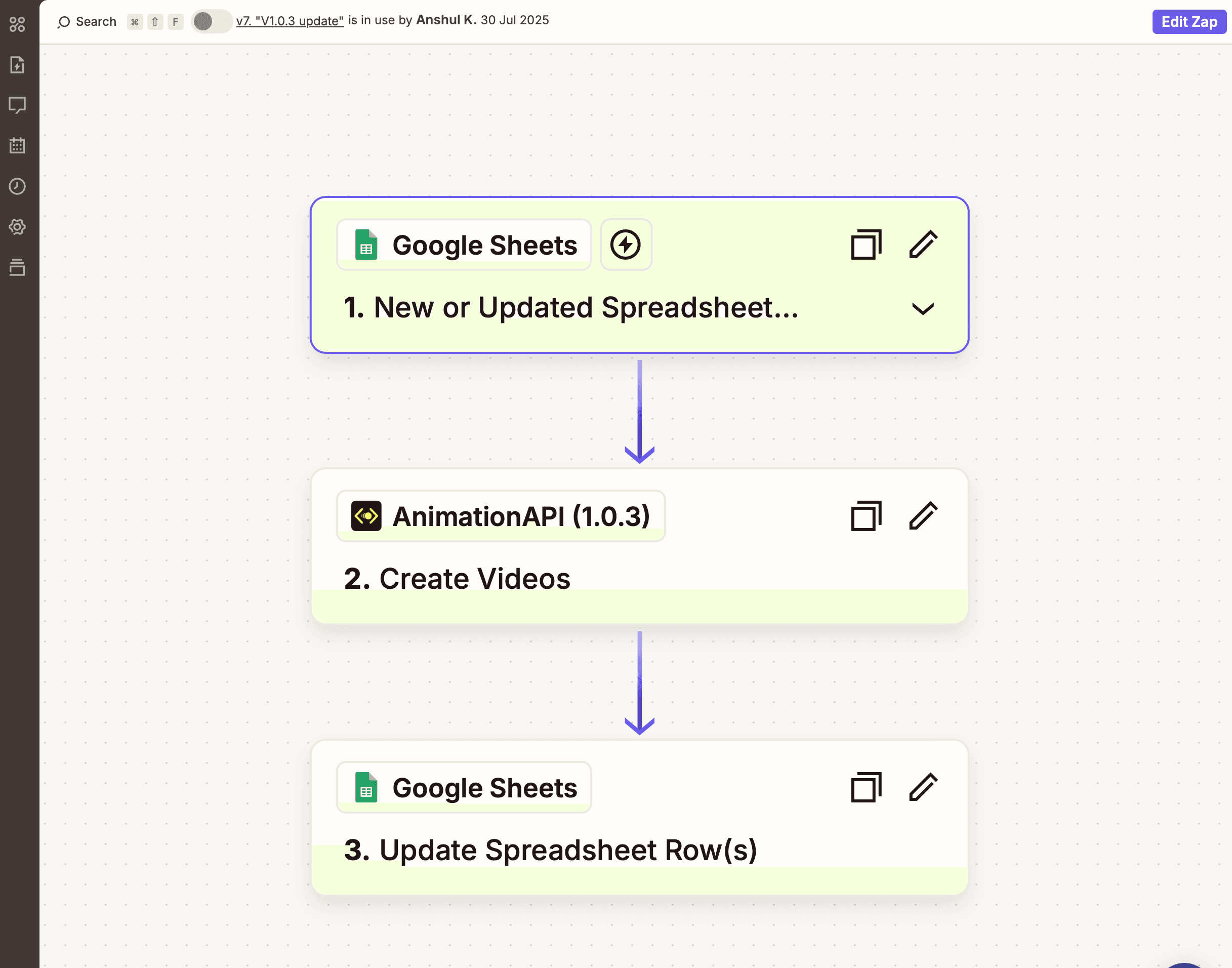
Step 1
In the trigger step select the App: Google Sheets.
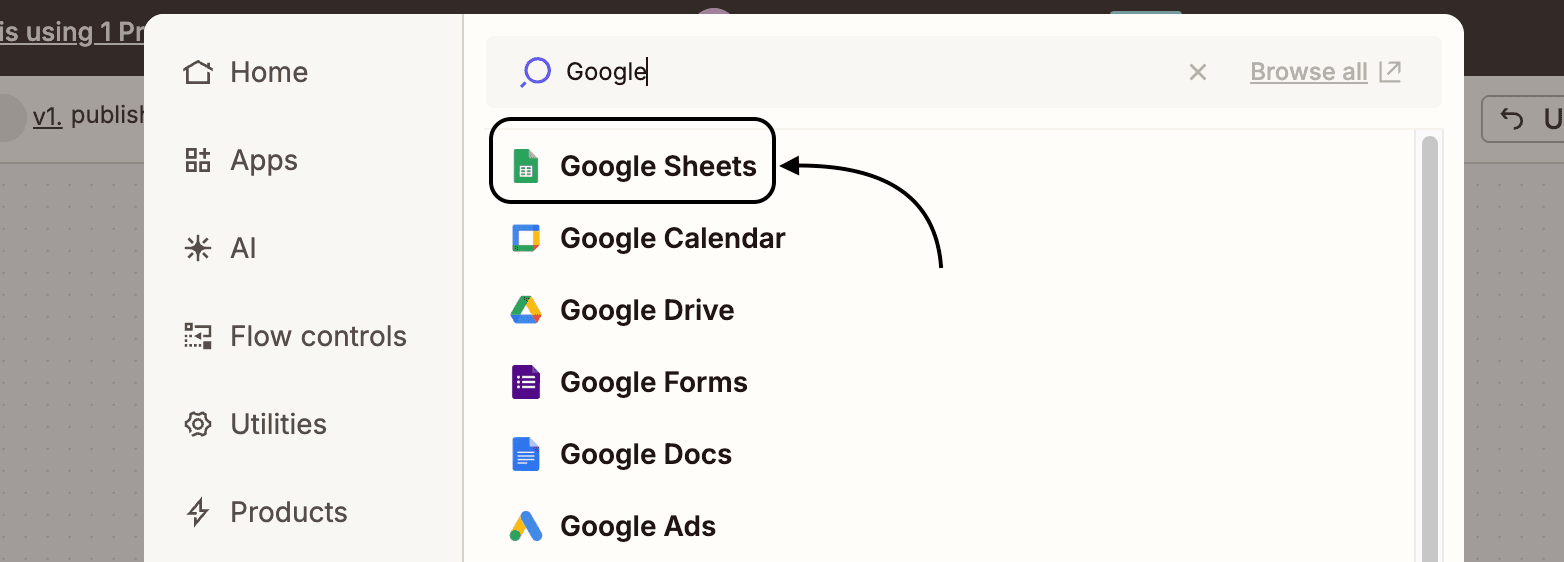
1. Setup
- Select Trigger event:
New or Updated Spreadsheet Row. - Login to your Google Account
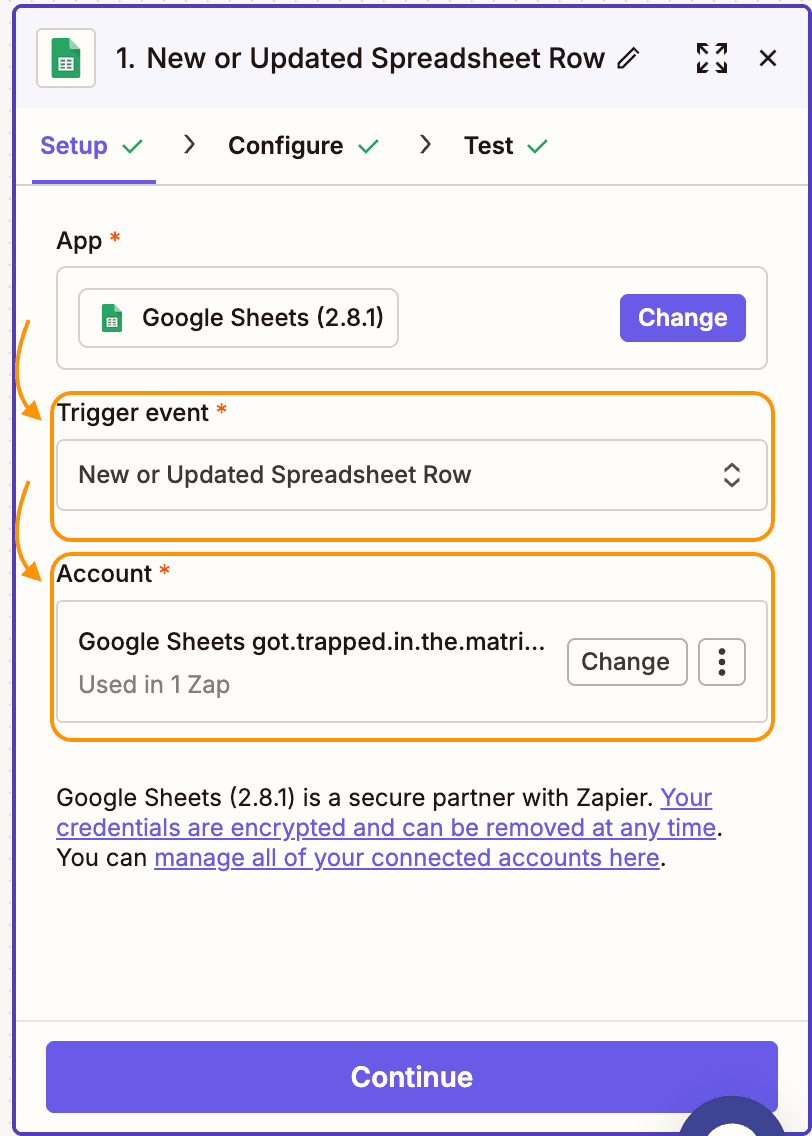
2. Configure
- Select the Spredsheet and Worksheet.
- Map the Trigger column:
ready

Step 2
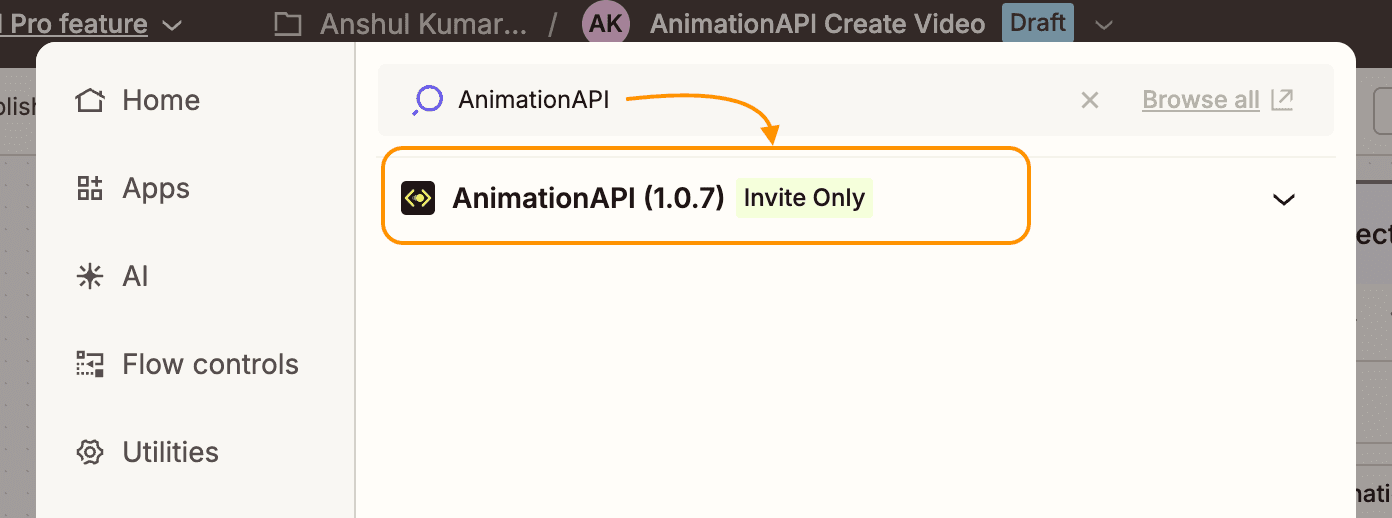
In the Zap add a step and select App: AnimationAPI(X.X.X). Select the latest available version.
1. Setup
- Select the Action Event:
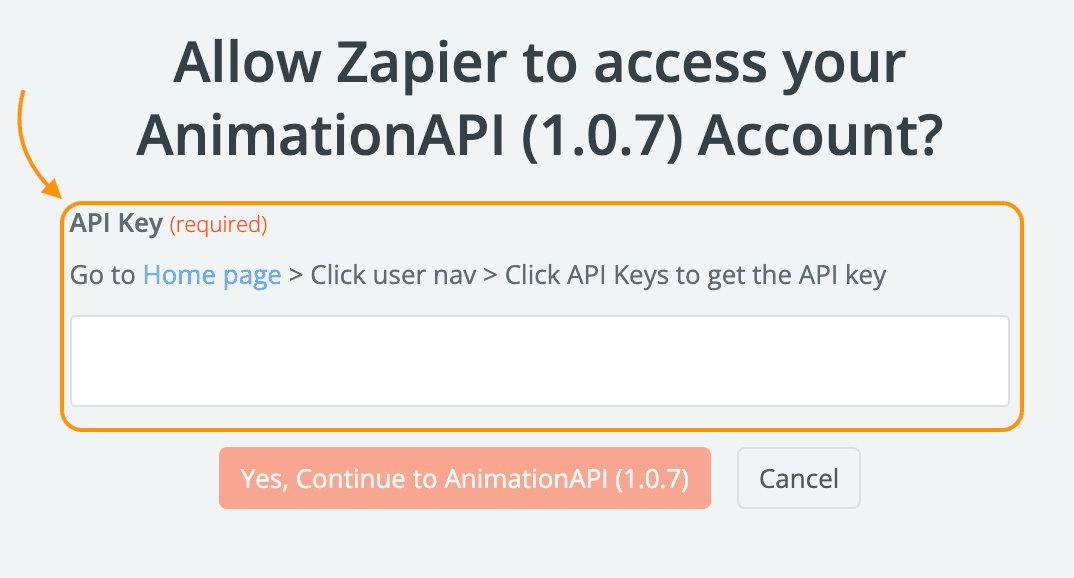
Create Videos - In the Account click
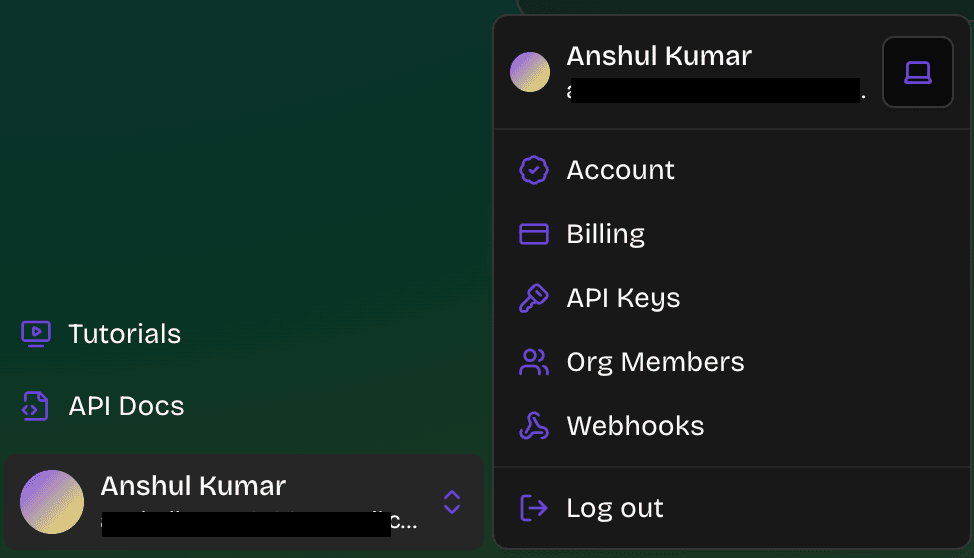
Connect a new Account - Add your API key. You can get your
API keyfromUser Menu -> API Keysin the AnimationAPI app.
2. Configure
Map the app input fields with spreadsheet columns:
| AnimationAPI Create Videos input | Worksheet column |
|---|---|
| Template Id | template_id |
| Version | version |
| Format | format |
| FPS | fps |
| Pages | pages |
| Layers | layers |
| Audio URL | audio_url |
Step 3 (Zapier paid plan)
If you have paid subscription of Zapier then you can add a third step in your zap.
Add 1 more step to your Zap and select App: Google Sheets.
1. Setup
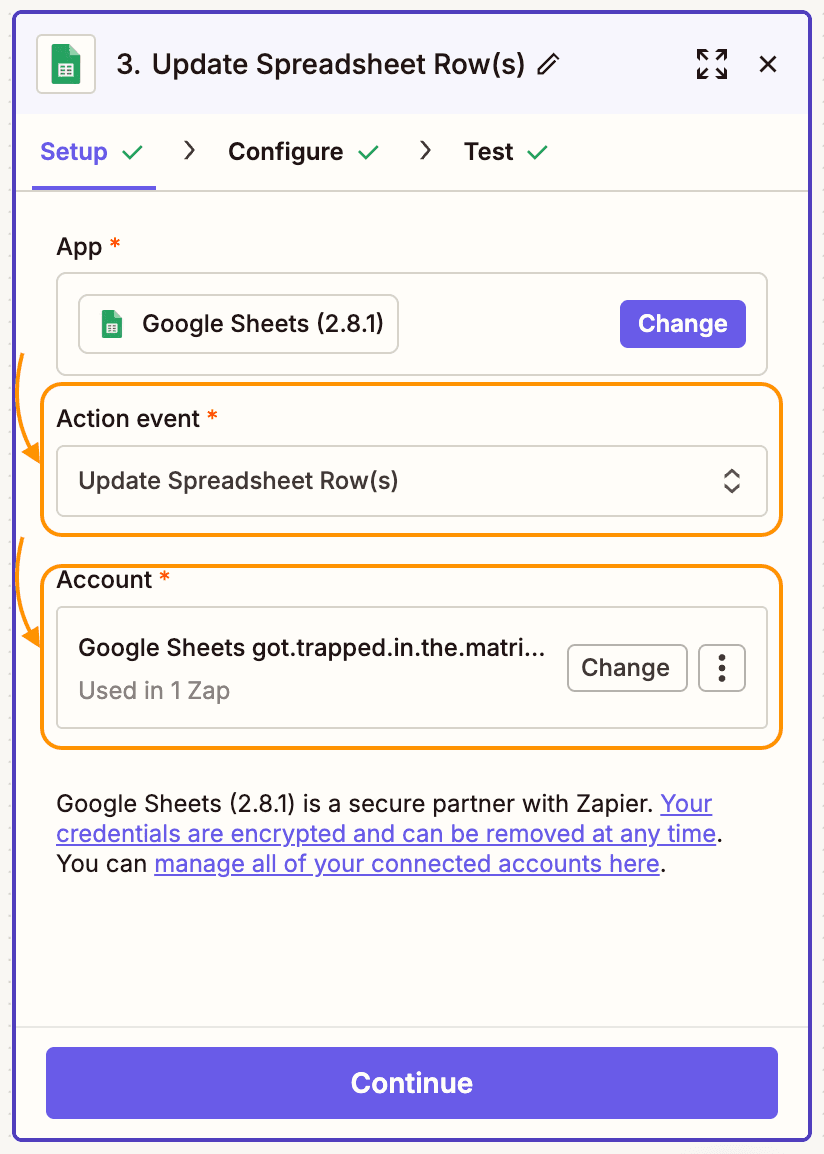
- Select the Action event:
Update Spreadsheet Row(s). - Select the Google Account.
2. Configure
- Select the Spreadsheet and Worksheet.
- Map the columns:
Worksheet column AnimationAPI Create Videos output status Status id ID self Self created_at Created At updated_at Updated At video_url Video Url error Error - In
Row Numberselect the row selected in Step 2 - Configure .
Rendered Videos
You will find all the genrated video outputs in the Request history tab in the AnimationAPI app.
If you are on Zapier paid plan then in the Step 3 the video_url column of the spreadsheet will be populated with the output video URL after successful completion of the Zap.